
Toolbars Not Loading
Symptoms
The SteelPLUS toolbars or ribbon panels do not appear after starting AutoCAD.
Cause
In most cases, this is an AutoCAD customization issue, not a SteelPLUS installation problem.
This commonly occurs after:
- Updating AutoCAD
- Installing a new version of AutoCAD
- Resetting AutoCAD settings
- Moving or renaming customization files
Solution 1: Check for Unresolved Customization Files
If AutoCAD cannot locate a customization file, the SteelPLUS toolbars cannot be loaded.
1. Open the Customize User Interface (CUI) dialog.
At the AutoCAD command prompt, type:
CUILook for any customization files marked as Unresolved.
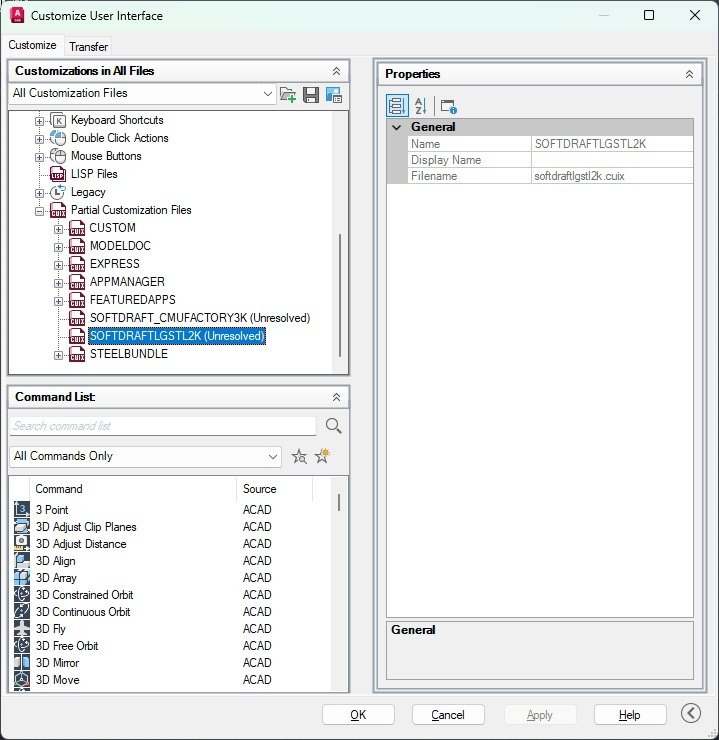
3. Resolve the File
Right-click the unresolved customization file and choose Browse.
Locate the correct SteelBundlex64.cuix file and open it.
Once the file is resolved, close the CUI dialog and verify that the SteelPLUS toolbars are now available.
Solution 2: Load the Toolbars Manually
If the SteelPLUS customization file is not listed, you can load it manually.
1. Start the CUILOAD Command
At the AutoCAD command prompt, type:
CUILOAD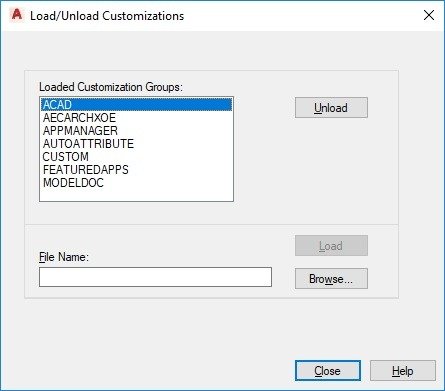
2. Browse to the SteelPLUS CUIX File
Click Browse and locate the SteelPLUS installation folder.
The default installation folder is similar to:
C:Program Files (x86)SoftDraftSteelPLUSVR2027Open the Support folder and select:
SteelBundlex64.cuix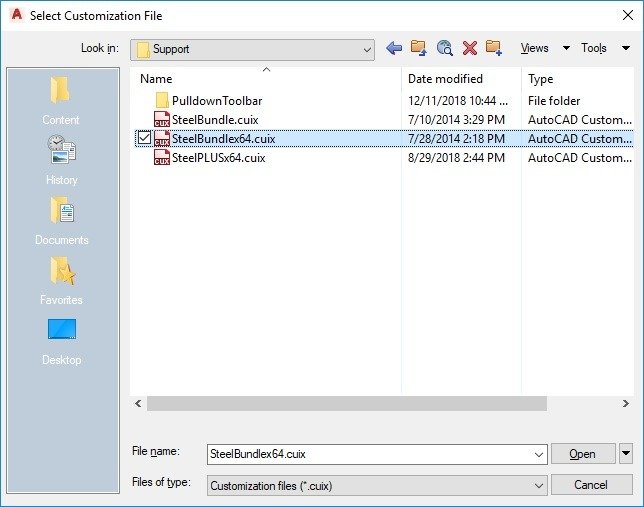
3. Load the Customization File
Click Load.
The SteelPLUS toolbars should now appear.
Click Close to exit the dialog.
If the CUIX File Cannot Be Found
If the SteelBundlex64.cuix file is missing:
- Verify that SteelPLUS is installed.
- Confirm that the installation folder has not been moved or renamed.
- If necessary, reinstall the current version of SteelPLUS.
Tip: Avoid moving or renaming files in the SteelPLUS installation folder. AutoCAD stores references to the original CUIX location, and changing the folder structure can prevent the toolbars from loading correctly.