Error: base.dcl Can’t Find File
Symptoms
You may receive one of the following AutoCAD error messages when starting a SoftDraft application:
- base.dcl: Can’t find file
- Error Loading Dialog Control File
- Semantic Error(s) in DCL Field
- Error in Dialog File
Cause
These are AutoCAD error messages, not SoftDraft program errors.
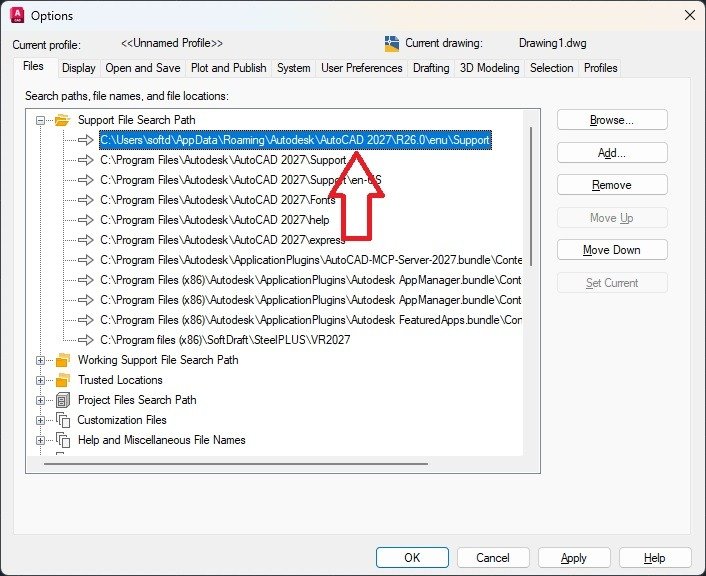
The messages indicate that AutoCAD cannot locate the BASE.DCL file required to display dialog boxes. This usually occurs when the AutoCAD Support File Search Path is missing or has been changed.
Solution
Locate the folder that contains the BASE.DCL file.
For most AutoCAD installations, it is located in a folder similar to:
AutoCAD 2027 Example
C:UsersYourUserNameAppDataRoamingAutodeskACA 2027enuSupportOnce you’ve located the folder:
- Open AutoCAD Options.
- Select the Files tab.
- Expand Support File Search Path.
- Add the folder containing BASE.DCL if it is not already listed.
- Move this folder to the top of the Support File Search Path list.
- Click OK and restart AutoCAD.
The dialog boxes should now load correctly.
Note: The exact folder location may vary depending on your AutoCAD product (AutoCAD, AutoCAD Architecture, AutoCAD Mechanical, etc.) and version.
Why This Happens
The BASE.DCL file is installed with AutoCAD and is used by many AutoCAD applications—not just SoftDraft software. If AutoCAD cannot find this file, dialog boxes may fail to open, and DCL-related error messages will be displayed.