
Launch Weld2K-LT Dialog
NOTE: Be sure to read the Frequently Asked Questions at the bottom of this lesson for program operations.
There are two ways to start Weld2K-LT.
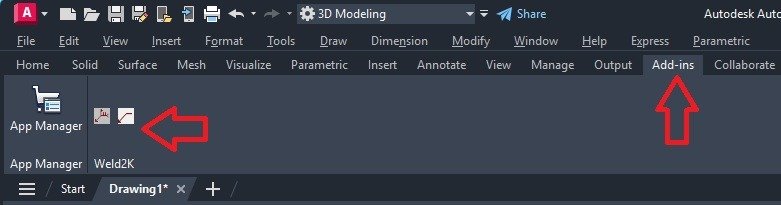
Option 1 – Add-ins Ribbon
Select the Add-ins tab on the AutoCAD Ribbon.
Click the Weld2K-LT icon.
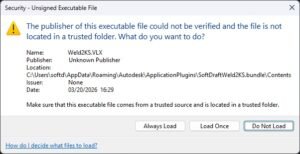
After clicking on the Weld2K-LT icon, if you see the following security dialog, click on Always Load.
Option 2 – Command Line
Type the following command at the AutoCAD Command Line:
Command:WELD2KExplore the Weld2K-LT Dialog
Don’t worry about learning every option today. Each feature will be covered in detail throughout the Weld2K training.
(Dr. Explain Screenshot – Main Dialog with Numbered Callouts)
Step 3 –
Step 4 –
(Dr. Explain Screenshot – Shape Type and Size)
Step 5 –
(Dr. Explain Screenshot – View Selection)
Step 6 –
(Dr. Explain Screenshot – Shape Attached to Cursor)
(Dr. Explain Screenshot – Shape Rotation)
Frequently Asked Questions
Question: The arrow size comes in so small that it cannot be seen. Is there a way to increase the arrow size of the leader by default so that one does not have to change it manually?
Answer: The arrowhead is controlled by the AutoCAD DimStyle. In the “Defaults” file, the default DimStyle used for Welding Symbols is “Standard”.
To set the Weld Symbols to use your Company DimStyle:
1. Open the Weld Dialog and select “Defaults”
Change the last line in this file to match your Company DimStyle Name.
Do not add any extra lines in this file below this one.
Save and close the file.
2. To change the DimScale, you must open the DimStyle dialog and Modify your Dim Style scale under the “Fit” tab.
Question: Can the default layer of the leader be changed so that it uses the same layer as the weld symbol?
Answer: Open the Weld symbol dialog Box and select the “Defaults” button at the top of the dialog. This will open …WELDWELD.CFG file in Notepad as shown below for editing:
……….
(“TYP” “AAC” “AAW” “AB” “ABD” “AC” “AHW” “AOC” “ASP” “AW” “B” “BMAC” “CAC” “FW”)
(“TYP”)
(“TYP”)
1 <- Not Used Now
1 <- Add Leader toggle 0 = No Leader 1= Single point Leader 2 = Multi-point Leader
WELD-SYMBOLS <- Not Used Now – Selected from dialog in AutoCAD
TEXT <- Not changeable except Layer Color in AutoCAD
LEADER <- Layer for Leader Line
0 <- Set to 1 for annotative scaling, Set to 0 for Dimscale
STANDARD <- Dimstyle setting
Question: Can the weld symbols or text height be modified to fit our requirements?
Answer: Yes, we can do this for you, or you can do this via the block editor.
Question: Can the text style be changed?
Answer: Yes, open the AutoCAD “STYLE” dialog and select the “WELD2K” style to make it the current style. Select your font, then click “Apply” and then “Close”. You may need to regen the drawing to see the change.
Question: In 2014, the program cannot recognize Command Line overrides of the DimScales.
Answer: To change the DimScale, you must open the DimStyle dialog and modify the scale under the “Fit” tab.
To set the Weld Symbols to use your Company DimStyle:
1. Open the Weld Dialog and select “Defaults”
Change the last line in this file to match your Company DimStyle Name.
Do not add any extra lines in this file below this one.
Save and close the file.
2. Open the Weld dialog and check “Use Dimscale”.
3. If you change your DimScale in this drawing, you must do this in the DimStyle Dialog.
Question: Can I modify a Weld Symbol Block
First Option: In the Weld Symbol dialog, uncheck “Use Dimscale” and set the “Weld Symbol Scale Factor” to a smaller number.
i.e., if your dimscale is 96, then try setting the “Weld Symbol Scale Factor” to 86.
Second Option:
If needed, we will modify any Weld Symbols for you.
1. Open the Weld dialog and place the symbol you want to modify.
2. Explode the Weld symbol you just placed.
3. Double-click on the individual symbol you want to modify.
4. This brings up the “Edit Block Definition” dialog showing the symbol name.
5. Click OK, which opens the Block Editor.
6. Modify the Symbol; do not change the insertion point.
7. Save the block and close the block editor.
This will redefine all the symbols with the block name in the current drawing.
To add the modified block to the Weld symbol Library
1. Open the WBLOCK dialog.
2. Select Block
3. In the Block pulldown, select the block you just modified.
4. Write the block to a folder you can access later.
5. Repeat this process for each block you modify.
Move the modified symbols to the Weld symbol Folder.
1. Open Windows File Manager & copy & paste this path where the folder path is.
C:\Program Files (x86)\SoftDraft\AutoCADLT\Weld2K\
2. Copy the existing blocks before overwriting with the modified ones.
3. Open a new Windows File Manager and locate the modified blocks.
4. Select all the modified blocks and move them to the Weld Symbol Folder.
I don’t see the Weld2K icon.
Verify that Weld2K was installed successfully and restart AutoCAD.
If the button is still unavailable, refer to the SoftDraft Software: Troubleshooting & Support course.
The Weld2K dialog doesn’t open.
Type WELD2K at the Command Line.
If the dialog still doesn’t appear, review the SoftDraft Software: Installation & Startup lessons above before continuing.
I purchased Weld2K from the Autodesk App Store. Why am I seeing the activation dialog?
The most common reason is that you are signed in to AutoCAD with a different Autodesk account than the one used to purchase Weld2K.
This often happens when a purchasing agent, CAD manager, or another employee completed the purchase using their Autodesk account.
If this applies to you, complete the Manual Activation process described above.
How long does it take to receive my License Key?
License Keys are typically emailed within one business day after your activation request is received.