
Restart AutoCAD to Load the Toolbars
After installation is complete:
✓ Steel2K2D-LT has been copied to the SoftDraft LT Application folder.
✓ Restart AutoCAD to load the toolbars into AutoCAD LT using the script file.
✓ After the software is loaded into AutoCAD LT, the application is now ready for activation.
Next, you’ll see how to load the application toolbars and software using the application Script file.
First-Time Execution (Loading the Application)
Once the installer has completed, you must run your application’s initialization script inside AutoCAD LT to load the application ribbon menus, configure support paths, and declare your secure workspace environment.
After Installation:
1. Restart AutoCAD LT and open a new drawing.
2. At the command line, type the following command and press Enter:
Command: SCRIPT <enter>
3. In the “Select Script File” dialog box that appears, navigate to your application’s folder using the paths for your App
(e.g., C:\Program Files (x86)\SoftDraft\AutoCADLT\[AppName]\).
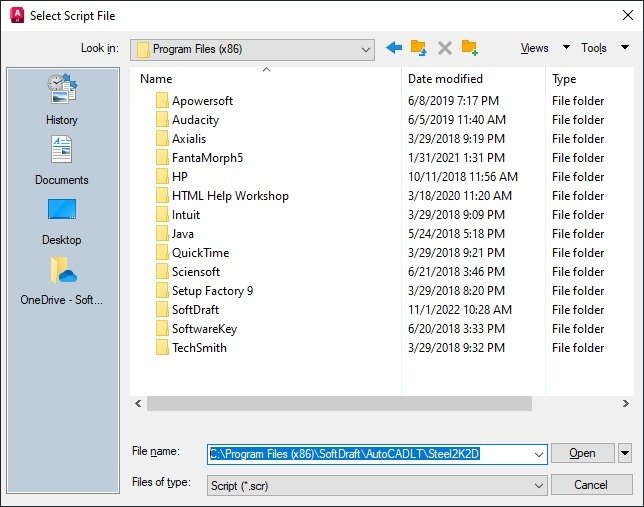
4. Copy the path below, adding your [AppName],
C:\Program Files (x86)\SoftDraft\AutoCADLT\[AppName]
and enter it in the “File Name” edit box, then click the “Open” button
The dialog should now be opened in the SoftDraft Application folder as shown below with the .SCR script file showing.
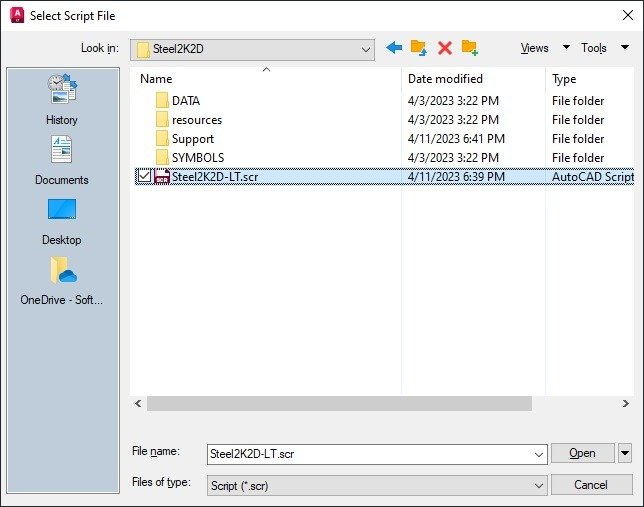
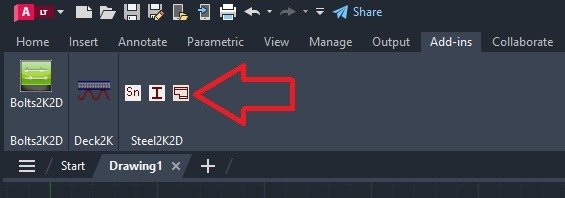
5. Look for your [AppName.scr] script file name, select it, then click Open. The script will run instantly, adding your new icon ribbon tool commands and custom tabs to the AutoCAD LT workspace in the “Add-Ins” Ribbon Panel as shown below.
Need Help?
If you experience any problems during installation or startup, continue to the SoftDraft Software AutoCAD LT: Troubleshooting & Support course for solutions to common installation, licensing, and AutoCAD configuration issues.