
Step 1 – Download the Installation Package
After purchasing the SoftDraft LT App from the SoftDraft Website, you should receive an email sales receipt with the download links at the top. One download link for the software application and one download link for the user guide.
Click on the links to save the .ZIP installation package file and the .PDF user guide to a convenient location on your computer, such as your Downloads folder or Desktop. If you receive an error message that the file cannot be found contact support@softdraft.com for assistance.
Tip: Keep the downloaded files after installation in case you need to reinstall the software in the future.
Extract the ZIP File
Locate the downloaded .ZIP file.
Right-click the ZIP file and choose Extract All… or use your preferred .ZIP utility to extract the contents into the download folder a new folder.
After extraction, you’ll see the SoftDraft LT installation file.
Step 2 – Close AutoCAD
Before installing the SoftDraft LT App, make sure Autodesk AutoCAD LT is completely closed.
Closing AutoCAD LT before installation ensures that all required files can be installed correctly.
Note: If an older version of the app is already installed, uninstall it before installing the new release.
Step 3 – Run the Installer
To install the software, double-click the .EXE file. The name of the file will be different depending on which software product you purchased:
STEEL2K2D-LT.exe
BOLTS2K2D-LT.exe
JOIST2K2D-LT.exe
to launch the SoftDraft-LT installation program follow these instructions:
Double click the .EXE install file to start the installation.
If Windows displays a security prompt as shown below, click Yes or Run Anyway to continue.
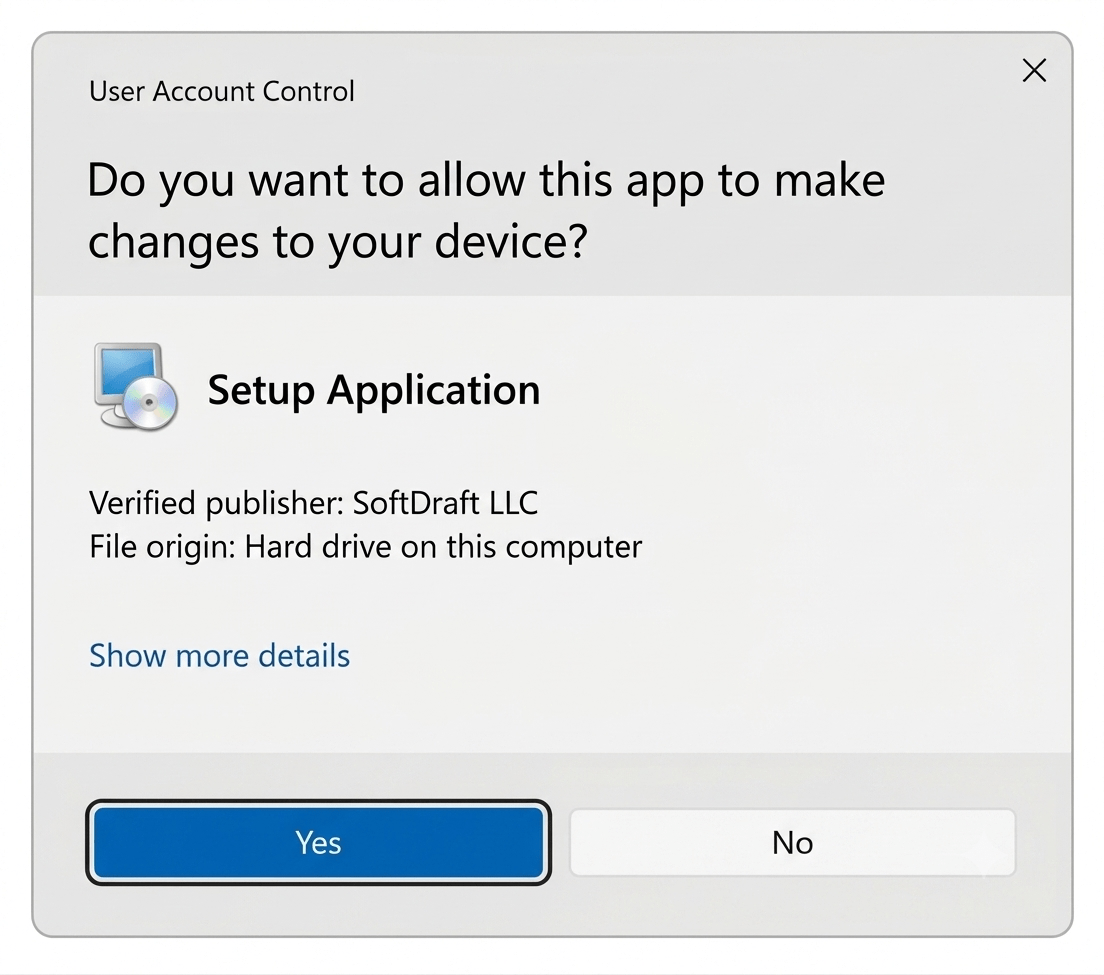
Administrator privileges may be required.
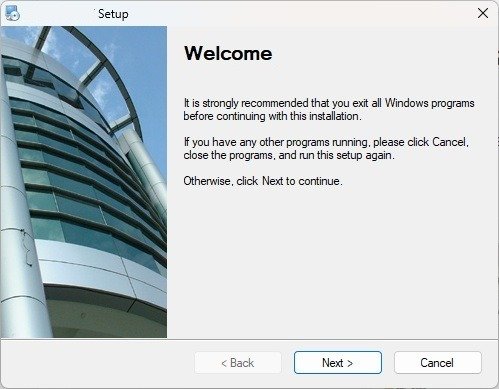
Step 4 – Complete the Installation
Follow the prompts in the installation wizard.
The installer will automatically copy the required files to the appropriate SoftDraft Application Plugins folder similar to this one:
C: Program Files (x86) \ SoftDraft \ AutoCADLT \ Steel2K2D
That’s it! The SoftDraft LT App has been installed automatically. The installer places all required files in the correct locations, so no manual file copying or configuration is necessary.