
Step 1 – Launch AutoCAD LT
Start Autodesk AutoCAD LT.
Launch Steel2K2D-LT Dialog
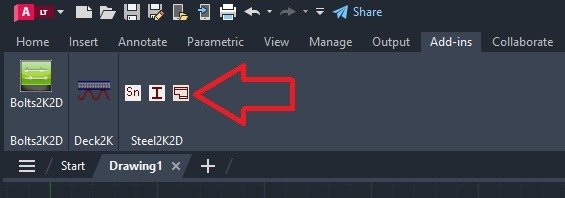
Select the Add-ins tab on the AutoCAD Ribbon panel.
Click the Steel2K2D Steel Beam center icon.
The following dialog will appear for the first time in the current drawing when the software is run the very first time and has not been activated.
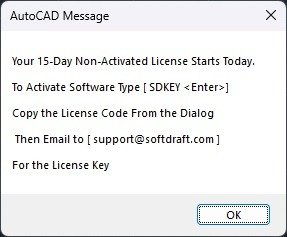
Click OK to close the dialog, and the SoftDraft App’s dialog will now open.
To obtain a permanent software activation License Key, you can execute the SDKEY command at the AutoCAD command prompt, then copy the License Code and email it to support@softdraft.com for the License Key as shown in the next steps.
Step 2 – Activate Your Software
The next time you open AutoCAD in a different drawing and execute the App icon, the Days Remaining / Activation dialog will open, showing how many days before the software must be activated.
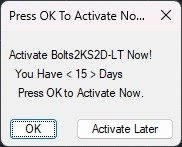
To continue using the software in the Non-Activated mode, click the Activate Later button.
Select the OK button to open the SoftDraft Activation dialog as shown in the next step.
Inside AutoCAD LT, you can type SDKEY at the command line and press Enter to open the Activation dialog at any time.
Step 3 – Request Your License Key
1. Inside AutoCAD LT, if you did not select the Activate Later button in the previous step, you may type SDKEY at the command line and press Enter.
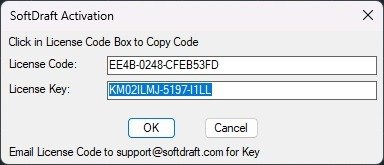
2. A Software Activation dialog box will open on your screen similar to this one.
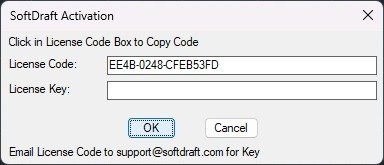
Your computer’s unique License Code is displayed in the Activation dialog.
Please copy the License Code to the Windows Clipboard by clicking into the License Code edit box, holding the left mouse button down then marking the license code. press CTRL+C to copy the code. To paste the license code in the email press CTRL+V inside the email to paste it in.
Tip: Copy and paste the License Code instead of typing it manually to avoid errors. When you receive the License Key Copy and paste it instead of typing it manually to avoid errors.
Send an email to:
Include:
- Your License Code
- Your Name
- Company Name (if applicable)
- SoftDraft product like Steel2K2D-LT
SoftDraft will generate your License Key and email it back to you.
Step 4 – Enter Your License Key
Copy the License Key from the email.
Paste it into the License Key field of the Activation dialog.
Click OK.
Step 5 – Verify Activation
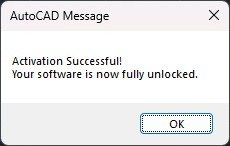
If the License Key is accepted, this dialog displays and the software is licensed and ready to use.
Manual activation only needs to be completed once for each licensed computer.