
Launch Steel2K Dialog
There are two ways to start Steel2K.
Option 1 – Add-ins Ribbon
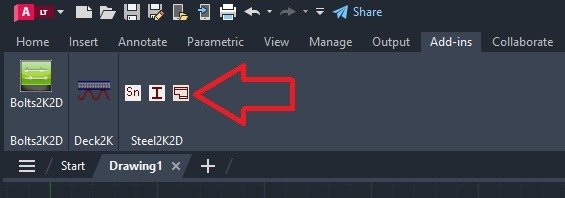
Select the Add-ins tab on the AutoCAD Ribbon.
Click the middle Steel2K icon to open the dialog interface.
Option 2 – Command Line
Type the following command at the AutoCAD Command Line:
Command:STEEL2K
Explore the Steel2K Dialog
The Structural Steel Shapes dialog is the main control center for Steel2K.
From this dialog, you can:
- Select the steel shape library
- Choose a steel shape type
- Select the member size
- Choose a drawing view
- Specify insertion options
- Access Steel2K settings
Don’t worry about learning every option today. Many of the features will be covered in detail throughout the Steel2K training.
Step 3 – Select a Shape Library
Choose the steel shape library that matches your project requirements.
Examples include:
- AISC
- CISC
- Other supported libraries
The selected library determines which structural steel sections are available.
(Dr. Explain Screenshot – Shape Library List)
Step 4 – Select a Steel Shape
Choose the type of structural member you wish to insert.
For example:
- W-Shapes
- Channels
- Angles
- Square Tubing
- Rectangular Tubing
- Pipe
- HP Shapes
- Tees
Next, select the desired member size.
(Dr. Explain Screenshot – Shape Type and Size)
Step 5 – Choose the Drawing View
Select how the structural member should be displayed.
Depending on your project, you may choose:
- Section
- Plan
- Elevation
- Single Line
- 3D
For this lesson, we’ll use a simple Section View.
(Dr. Explain Screenshot – View Selection)
Step 6 – Insert the Shape
Click OK.
The selected steel shape will attach to your cursor.
Move the cursor to the desired location.
Click to place the shape.
Move the cursor to define the rotation angle.
Click again to complete the insertion.
(Dr. Explain Screenshot – Shape Attached to Cursor)
Frequently Asked Questions
I don’t see the Steel2K icons.
Verify that Steel2K was installed successfully and restart AutoCAD.
If the button is still unavailable, refer to the Troubleshooting section later in this course.
The Steel2K dialog doesn’t open.
Type STEEL2K at the Command Line.
If the dialog still doesn’t appear, review the installation and licensing lessons before continuing.
How long does it take to receive my License Key?
License Keys are typically emailed within one business day after your activation request is received.