
Security Warning: Unsigned Executable File
Symptoms
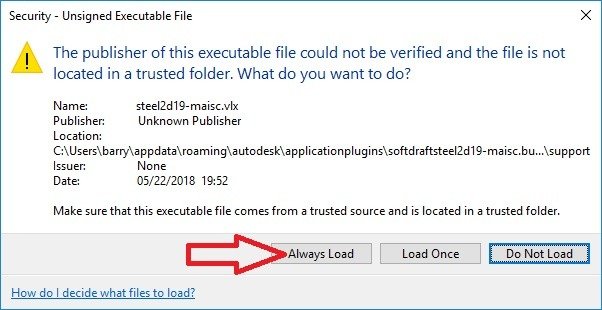
When starting AutoCAD, you may see a security message similar to:
An executable file was found outside of the specified trusted locations. What do you want to do?
Cause
This is an AutoCAD security feature introduced in AutoCAD 2014 and later.
AutoCAD displays this warning whenever it attempts to load an application from a location that is not currently listed as a Trusted Location.
This is not a SteelPLUS error and does not indicate that the software was installed incorrectly.
Solution
If you trust the SteelPLUS application, click Always Load when the security dialog appears.
AutoCAD will continue loading the application, and the message should not appear again for that file.
Note: If multiple SoftDraft applications are installed, you may be prompted once for each application the first time AutoCAD loads them.
Preventing Future Security Prompts
If your organization’s security policies require it, you can also add the SteelPLUS installation folder to AutoCAD’s Trusted Locations list.
- Open AutoCAD Options.
- Select the Files tab.
- Expand Trusted Locations.
- Add the SteelPLUS installation folder.
- Click OK and restart AutoCAD.
Once the installation folder has been added as a trusted location, AutoCAD will recognize the files as trusted and should no longer display the security prompt for applications in that folder.
Important: Only choose Always Load or add a folder to Trusted Locations if you trust the source of the software. SteelPLUS applications downloaded directly from SoftDraft are intended to be loaded in this manner.