
Uninstalling the SteelPLUS Bundle
Overview
When Should You Uninstall?
In most situations, you do not need to uninstall the SteelPLUS Bundle to resolve a problem.
If you’re experiencing an issue, first work through the troubleshooting lessons in this guide. Many common problems can be corrected by restoring support paths, reloading the menus, or updating AutoCAD settings without reinstalling the software.
Examples include:
- Missing toolbars or ribbon panels
- Startup errors after an update
- Problems after upgrading AutoCAD
- Corrupted program settings
Only consider uninstalling the software when:
- You are installing a newer version of the SteelPLUS Bundle.
- You have been instructed to perform a clean installation by SoftDraft Technical Support.
How to Uninstall the SteelPLUS Bundle
Default Installation Folder
By default, the SteelPLUS Bundle is installed in:
C:Program Files (x86)SoftDraftSteelPLUSVR20271. Locate the Installation Program
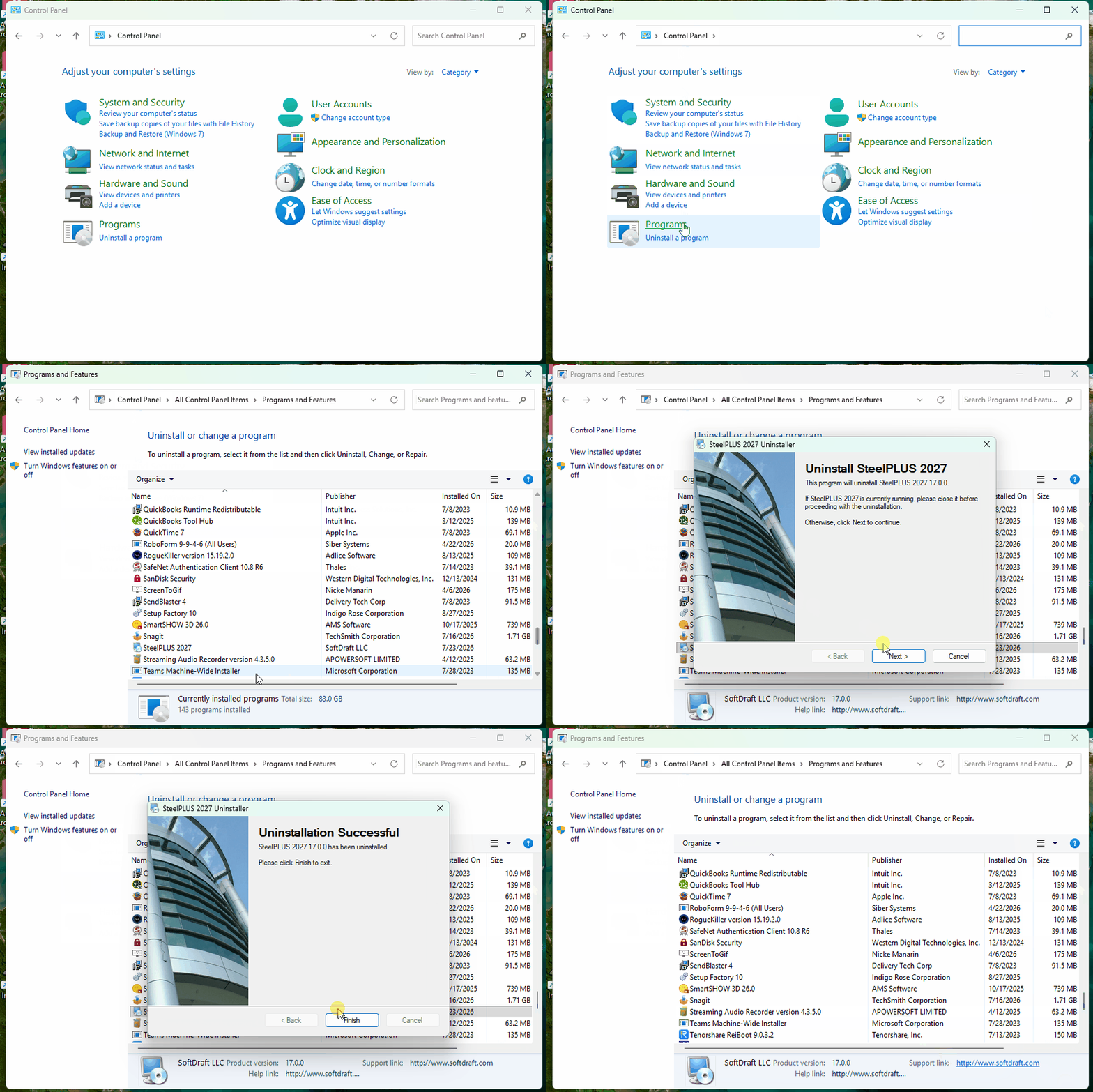
In Windows Search, type: Control Panel, then press Search and click Open
Select Uninstall from the list of options.
Scroll down and look for the filename, which may vary depending on the product version, for example SteelPLUS 2027:
VR2027_SI.exeDouble-click the installation file.
3. Select Uninstall
Choose the Uninstall option to remove the software from your computer.
4. Complete the Process
Follow the on-screen prompts until the uninstall process finishes.
Click Close when the process is complete.
The SteelPLUS Bundle has now been removed from your computer.
After uninstalling, reinstall the latest version of the SteelPLUS Bundle.
Workflow Tip: Restart AutoCAD after uninstalling or reinstalling the software. This ensures AutoCAD reloads all menus, support paths, and application files correctly.