
After loading the SteelPLUS partial CUIX file, AutoCAD must be configured to locate the SteelPLUS program files stored on the network.
This is accomplished by adding the SteelPLUS network folders to AutoCAD’s Support File Search Path.
Open the AutoCAD Options Dialog
- Start AutoCAD.
- At the Command prompt, enter:
OPTIONSPress Enter.
The Options dialog box will appear.
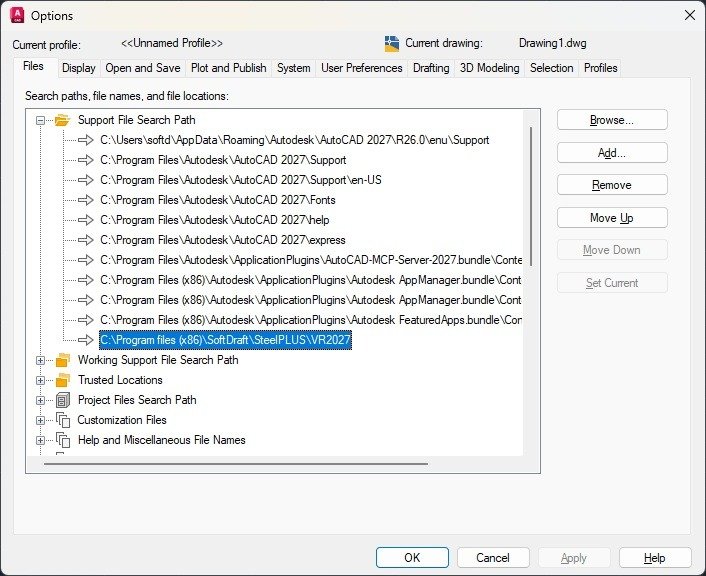
Add the SteelPLUS Support Paths
- Select the Files tab.
- Expand Support File Search Path.
- Click Add.
- Click Browse…
- Browse to the SteelPLUS network installation.
Example:
\\ServerName\Programs\SteelPLUS\VR2026\Support\or
K:\Programs\SteelPLUS\VR2026\Support\- Click OK to add the folder.
Save the Changes
Click Apply, then OK to save the new support paths.
AutoCAD will now search these folders whenever SteelPLUS commands, AutoLISP programs, menu files, fonts, or support files are required.
Verify the Support Paths
Reopen the Options dialog and confirm the SteelPLUS folders appear in the Support File Search Path list.
If the paths are listed correctly, restart AutoCAD to ensure all SteelPLUS components are loaded properly.
Best Practice
Place the SteelPLUS folders near the bottom of the Support File Search Path list. This helps AutoCAD locate SteelPLUS resources more efficiently and reduces the chance of conflicts with similarly named files from other applications.