Installation Problems
Default Installation Location
SteelPLUS Bundle is installed into the following folder:
C:Program Files (x86)SoftDraftSteelPLUSVR2027
Normally, there is no need to modify any of the installed files.
How to uninstall the SteelPLUS Bundle:
-
Locate the Original Installation File you Downloaded:
In Windows Search, type: Control Panel. -
Run the Installation File:
- For the SteelPLUS Bundle installation file, double-click the file named:
VR2027_SI.EXE (name may be different for your version)
- For the SteelPLUS Bundle installation file, double-click the file named:
-
Open the Uninstallation Options:
When the installation dialog opens, you will see Uninstall options. -
Start the Uninstallation Process:
Select the Uninstall option, and the uninstallation process will begin automatically. -
Finish the Process:
Once the uninstallation is complete, click Close to exit the dialog box.
Your software will now be uninstalled successfully.
base.dcl Error Message
base.dcl: Can’t find file
Error Loading Dialog Control File
Semantic Error(s) in DCL Field, Error in Dialog File
These are AutoCAD errors.
You must locate your BASE.DCL file, which is usually in the folder (or similar one) shown below.
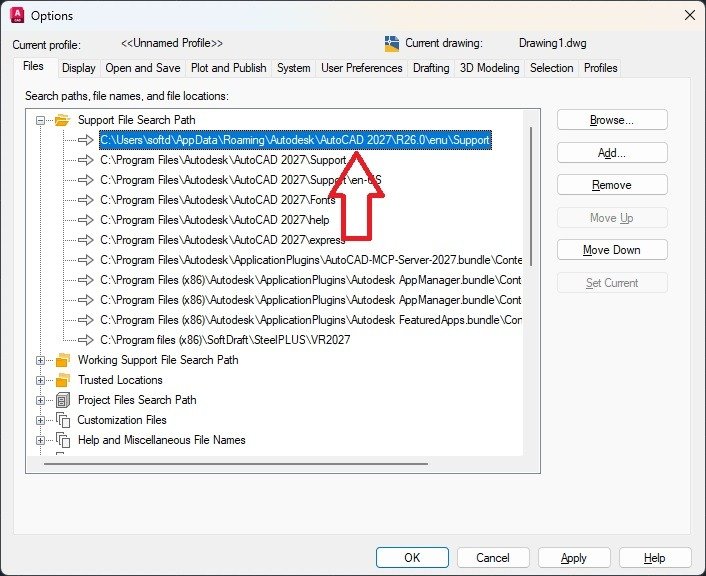
AutoCAD 2027 Example
C:UsersYourUsernameappdataroamingautodeskautocad 2017r26.0enusupport
“YourUsername” above is your name or the name used on the computer.
Once you locate this folder add it to the AutoCAD “Options” “support file search path” as this should be the first path in the list.
Toolbars Not Loading
This is an AutoCAD issue and not a SteelPLUS issue:
You may have an unresolved toolbar
Open the CUI dialog in AutoCAD and look under “Partial Customization Files” to see if any are unresolved.
Resolve the file by right-clicking and browsing to the CUIX file.
Loading The Toolbars Manually
1. At the AutoCAD command prompt, type:
Command: CUILOAD <Enter>
The Load/Unload Customization dialog displays as shown.
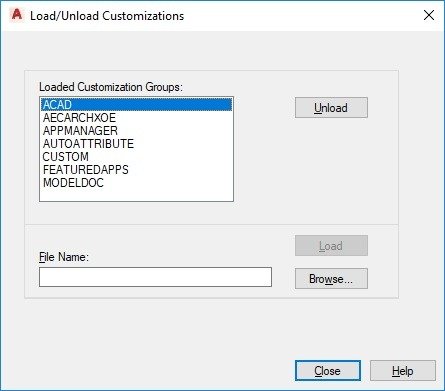
2. Click the Browse… button to display the Select Customization file dialog as shown below.
SteelPLUS is installed into the following default folder and will not run correctly if you DID NOT install the program in the default folder or moved it to another folder after installation.
C:Program Files (x86)SoftDraftSteelPLUSVR202X (2020X Enter your version here 2020, 2021 etc.)
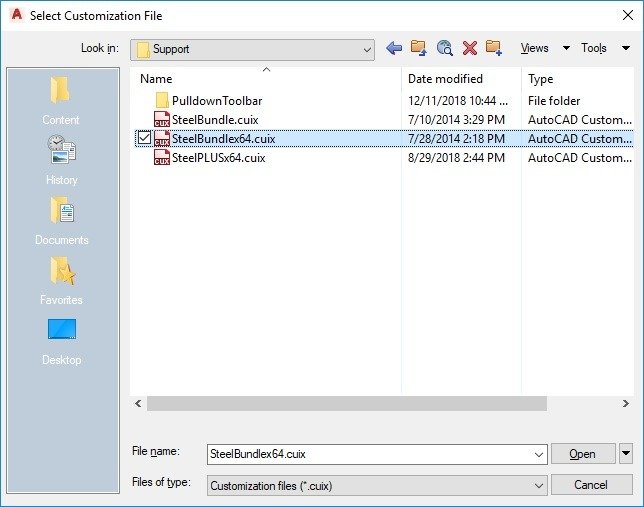
3. From the Look in: pull-down, locate the SteelPLUS …SUPPORT folder.
Select the SteelBundlex64.CUIX menu
4. Click Open and the original dialog returns.
5. Click Load button from the Load/Unload Customization dialog.
You should now see the SteelPLUS toolbars loaded; then click Close to close the dialog.
Startup Issues
Trusted Locations
Error Dialog: An executable file was found outside of the specified trusted locations. What do you want to do?
This is something new added in AutoCAD 2014+ versions.
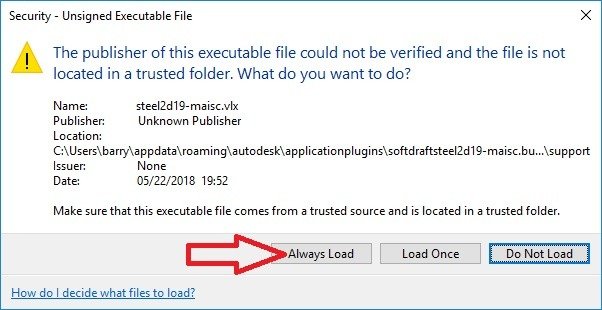
When AutoCAD starts, if you see a “Security – Unsigned Executable File” dialog similar to the one above, click “Always Load” for each App.
Restore Missing Dialog Images
SteelPLUS Bundle: Restore Missing Dialog Preview Images
Are the preview images missing from the SteelPLUS dialogs after installing the SteelPLUS Bundle?
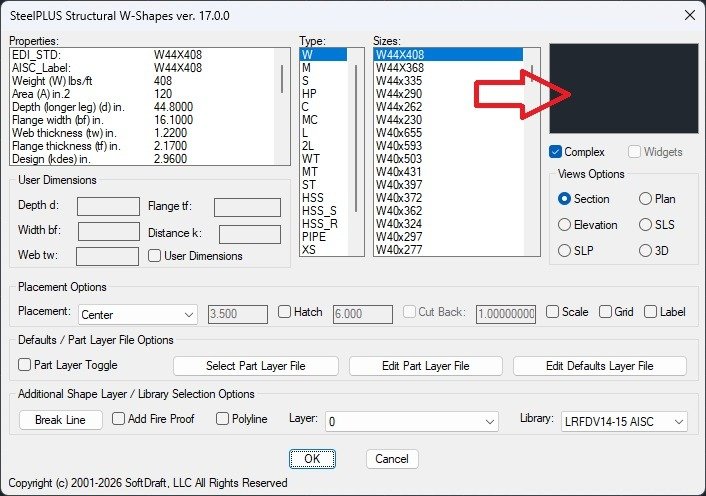
In this troubleshooting lesson, you’ll learn how to restore the structural steel shape preview images by verifying the AutoCAD Support File Search Path.
If the various SteelPLUS dialogs display blank image areas when selecting different steel shapes, bolts, deck, joist, or weld symbols, AutoCAD may not be able to locate the SteelPLUS support files. This video walks you through updating the Support File Search Path so the preview images display correctly.
Once the support path has been updated, the Steel2K dialog will immediately display the steel shape preview images, making it easier to identify and select the correct structural member.
“STLP” Unknown Command
If you receive an Unknown command error when clicking on the Steel Toolbar
This would indicate that the software is not loading properly.
Review the section above “Loading The Toolbars Manually”
Cannot invoke (command) from “error”
Cannot invoke (command) from “error” without prior call to (*push-error-using –command*).
The issue is with AutoCAD, not SteelPLUS.
This happens in older AutoCAD version drawings, so the solution is to make the older drawings into new drawings.
One way to do this is by creating a new drawing file and then xref and bind (optional) the older file into it.
Layer Name Issues
Layer names with a space between them should instead have a dash “-“ between.
“NEW STEEL” – This example of a space between the words will cause the layers to sort incorrectly
“NEW-STEEL” – This example shows the correct layer name
Layers that have a space ” ” or underscore “_” at the beginning of the name will not sort correctly also.
” NEW-STEEL” – Space at beginning of layer name will cause the layers to sort incorrectly
“_NEW-STEEL” – Underscore at beginning of layer name will cause the layers to sort incorrectly
vlax-ldata-get – error: no function definition:
This is an AutoCAD error-
;error: no function definition: vlax-ldata-get
This error indicates that your AutoCAD is not loading the .com objects module.
Here are a few things we have found to resolve this AutoCAD error. So try them one at a time, see if you still get the error; if so, then do the next one.
- Go to Windows Start, select the AutoCAD version you have, then from the pulldown select “Reset Settings To Default”
- Try a repair on AutoCAD
- Apply the latest Service Pack for your product version
- Reboot the computer
- If none of the above work, you will have to uninstall and reinstall AutoCAD.